

- Compare all new NBN connection boxes
- Easy setup guides for one port, four port FTTP, and HFC models
- Learn what each light means and how to choose the right box for your home or business
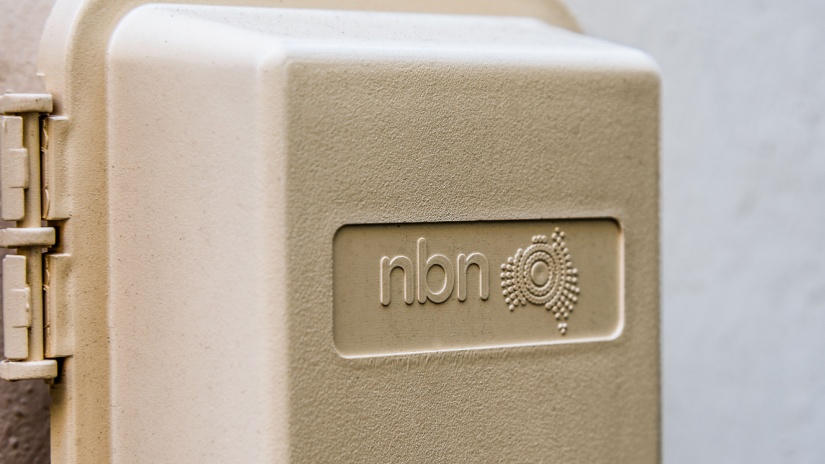
As part of nbn®’s major network upgrade, there are now two brand-new Fibre to the Premises (FTTP) connection boxes available. These new devices are designed to support nbn®’s upcoming multi-gigabit Internet plans, including the ultra-fast nbn® Hyperfast service.
These nbn® boxes are also known as Network Termination Devices (NTDs). They act as the main link between the National Broadband Network and your Wi-Fi router. Once connected, your router distributes the Internet connection to devices throughout your home or business, including smartphones, laptops, smart TVs, tablets, gaming consoles, and other connected devices.
Whether you're connecting a home or a business, there's a nbn® box to suit your needs:
- A one port model, ideal for most residential users and small businesses
- A four port model, built for businesses or households that need multiple services or connections
These new nbn® boxes not only deliver faster speeds but also provide a more streamlined, future-ready Internet experience.
Along with faster connectivity, the latest generation of nbn® connection boxes is designed to be more energy efficient. On average, they use around 33% less power than earlier models - approximately 4.2 watts compared with about 6.4 watts previously. Over the course of a year, the energy savings are roughly equivalent to turning off a 55-inch smart TV after watching around 200 hours of content.
If you are connecting to the nbn® for the first time or upgrading to Fibre to the Premises, you will typically receive one of these new energy-efficient devices automatically as part of your installation.
Need help figuring out which box is right for you? Call Compare Broadband today to learn more about the new NTDs (Network Termination Devices) and how to get ready for the next generation of Internet in your home or office.
Now, let’s take a closer look at each type of FTTP nbn® box, how they work, and how to set them up:
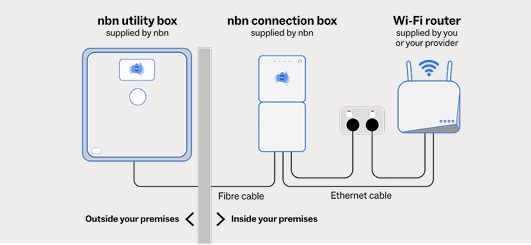
Source: Fibre to the Premises (FTTP) explained | nbn
Introducing the new nbn® FTTP one port connection box
A new type of nbn® Fibre to the Premises (FTTP) box is now available. This upgraded version is smaller than before, has just one Ethernet port, and is built to handle next-generation Internet speeds - including upcoming multi-gigabit plans like nbn® Hyperfast.
The updated device is also lighter and designed with sustainability in mind. Each unit - including the wall bracket and power supply - weighs roughly 400 grams, which is significantly lighter than older models that weighed more than 1 kilogram.
Many of the components are made using approximately 84% recycled plastic, and the packaging used for delivery is made from 100% recycled materials. No single-use plastic is used in the packaging, helping reduce waste and support nbn® Co’s broader environmental initiatives.
Whether you’re setting up FTTP for the first time or upgrading to faster speeds, this guide will help you understand how to install the nbn® box, what its lights mean, and how to keep everything running smoothly.
- Please don't remove your nbn® NTD box
- Your nbn® connection box is installed specifically for your current address. If you move house or office, leave it behind - it won’t work anywhere else.
- If you're moving into a place with FTTP and notice the box is missing, contact your Internet provider. They’ll help arrange a replacement.
How to connect to the Internet
Sign up for an nbn® powered plan
Choose an Internet provider and sign up for a broadband plan. After your order is confirmed, an nbn® technician will install the nbn® wall box if one isn't already there.
In most cases, standard installation of nbn® equipment - including the connection box - is provided at no additional cost to the customer. If a non-standard installation is required, such as additional cabling or special equipment, your installer will let you know beforehand.
Remove the wall mount cover
To access the ports, press the sides of the wall mount cover and slide it down. This reveals the connection ports.
Connect your Wi-Fi router
Plug an Ethernet cable from your router into the orange port labelled "Port" on the nbn® box.
The network termination device effectively acts as the interface between the National broadband network and your home network. Once connected, your Wi-Fi router distributes the signal wirelessly or via Ethernet to devices throughout your home or business.
Wait for the connection
The green Optical light will flash while data is being transferred. When it stays on steadily, your connection to the National broadband network is active. The Port light will also flash if your router is connected correctly.
Put the wall mount cover back on
- Slide the cover back up to protect the cables and finish your setup.
What the lights on your nbn® box mean
There are four lights on the front of the connection box. Here’s what each one means:
Power light
| Light | Meaning | What to do |
| Off | No power | Check the power cable is plugged in. Check with your provider if it's on and there's still no power |
| Green - slow flash | Starting up | Be patient - it should be solid green soon |
| Green - fast flash | Updating | No action needed - updates are installing |
| Green - solid colour | Power is on and working | All good - no action required |
Optical light
| Light | Meaning | What to do |
| Off | Not connected to the NBN network | Contact your Internet provider |
| Green - solid | Connected to network | No action needed |
| Green - slow flash | Data is being transmitted | No action needed |
| Red | Lost connection | Contact your Internet provider |
Alarm light
| Light | Meaning | What to do |
| Off | Everything is working | No action required |
| Red | There's a fault | Contact your Internet provider |
Port light
| Light | Meaning | What to do |
| Off | No active service/no router connected | Make sure your router is plugged into the Port and that you have signed up for a plan |
| Green - solid | Service active, no data flowing | No action needed |
| Green - fast flash | Data is being transmitted | All good - your router is connected and active |
Turning the lights on or off
You can press the "Lights On/Off" button on the box to turn the lights off - handy if it's in a bedroom or workspace.
Important: Turning off the lights won’t turn off your Internet. But if you're trying to troubleshoot, turn them back on to see what's happening.
What the ports on the box do
The layout of the ports may vary slightly depending on the manufacturer, but you’ll usually see them in this order:
Reset > Port > Power > Optical
or
Power > Reset > Port > Optical
Here’s what each port does:
- Reset: A small button (use a paperclip to press it).
- Press briefly (under 5 seconds) to restart.
- Press and hold (over 5 seconds) to reset to factory settings.
- Only use this if your provider asks you to.
- Port: Where you plug in the Ethernet cable from your Wi-Fi router.
- Power: Where the power cord connects.
- Optical: Connects the fibre optic cable from the network.
Need help with the new nbn® box?
With the new FTTP one port connection box, it’s a great time to review your Internet plan now, especially if you're considering faster speeds like nbn® Hyperfast#.
As part of this upgrade, nbn® has also introduced faster wholesale speed tiers for Fibre to the Premises (FTTP) and Hybrid Fibre Coaxial (HFC) connections. These upgrades allow households and businesses to access significantly higher download and upload speeds than before.
For example, the Home Fast plan increases from 100/20 Mbps to 500/50 Mbps, while Home Superfast increases to 750/50 Mbps. Home Ultrafast plans can reach close to 1000/100 Mbps, and new Home Hyperfast tiers can deliver speeds of up to 2000 Mbps download on supported FTTP connections and up to 2000/100 Mbps on HFC connections.
These improvements help support bandwidth-heavy activities such as 4K streaming, online gaming, cloud backups, video conferencing, and households with many connected devices using the Internet at the same time.
Introducing the upgraded nbn® FTTP four port connection box
Along with the one port nbn® FTTP box, the new nbn® Fibre to the Premises (FTTP) four port box will be available across Australia.
This new model is designed for homes and businesses that need more than one Internet connection - it allows you to connect up to four separate services from the same or different providers, all through one device.
An nbn® connection box acts as the bridge between the nbn® network and your modem or Wi-Fi router. Once connected, the router distributes the Internet signal throughout your premises using Wi-Fi or Ethernet connections.
Whether you’re upgrading to faster speeds or planning multiple connections (for work, home, gaming, etc.), this guide will help you understand how the box works, how to set it up, and what the lights on the front mean.
Connection boxes like this are commonly used with several nbn® technologies, including Fibre to the Premises (FTTP), Hybrid Fibre Coaxial (HFC), Fibre to the Curb (FTTC), Fixed Wireless, and Sky Muster satellite services. Each technology uses different equipment, but the nbn® box always serves the same purpose - linking your home network to the broader nbn® infrastructure.
What is the four port connection box?
The four port nbn® NTD box is part of the FTTP setup provided by nbn®. It includes:
- Four Ethernet ports, each capable of running a separate Internet service
- Seven lights to show power, network connection, alarms, and activity on each port
- A design that allows you to connect multiple routers (great for homes or businesses with different network needs)
Each Ethernet port can support its own Internet service. This can be particularly useful for businesses that want separate networks for staff and customers, or households that need dedicated connections for work-from-home setups, gaming networks, or smart home systems.
Don't take the nbn® connection box with you if you move
The nbn® ntd box is permanently linked to your current address. If you move, leave it behind. It won’t work in another location.
If you move into a property with FTTP but the box is missing, contact your Internet provider. They’ll arrange for a replacement to be installed.
How to connect to the Internet
Sign up for an nbn® powered plan
Choose a phone and Internet provider and sign up for a plan. After your order is confirmed, a technician will install the connection box if it’s not already there.
To receive an nbn® connection box, you must first sign up for an nbn® plan through an Internet Service Provider (ISP). The provider will organise the installation and supply the equipment required for your specific connection type.
Remove the wall mount cover
To access the ports, press the sides of the cover and slide it downwards.
Check which port your service is using
Each of the four Ethernet ports (Port 1 to Port 4) can run a different service. Your Internet provider will tell you which port to use.
Troubleshooting tip: If all four ports are in use, or your assigned port is already active, contact your provider for help.
Connect your Wi-Fi router
Plug the Ethernet cable from your router into the correct port (Port 1, 2, 3, or 4). Businesses with more complex cabling may need to speak with their provider for setup support.
Your router is responsible for distributing the Internet connection from the nbn® connection box to your devices. Once the router establishes a connection, it shares the signal either wirelessly via Wi-Fi or through Ethernet connections across your home or workplace.
Wait for the connection
The Optical light will flash slowly when data is being transmitted. When it turns solid green, your box is connected to the network. The light for the specific Port you're using will flash to show that it's active.
Replace the wall mount cover
Once everything’s connected, slide the cover back up to keep the ports protected.
A simple guide to the lights on your connection box
There are seven lights on the front of the four port connection box. Here’s what each one means:
Power light
| Light | Meaning | What to do |
| Off | No power | Check the power cable is plugged in. Check with your provider if it's on and there's still no power |
| Green - slow flash | Starting up | Be patient - it should be solid green soon |
| Green - fast flash | Updating | No action needed - updates are installing |
| Green - solid colour | Power is on and working | All good - no action required |
Optical light
| Light | Meaning | What to do |
| Off | Not connected to the NBN network | Contact your Internet provider |
| Green - solid | Connected to network | No action needed |
| Green - slow flash | Data is being transmitted | No action needed |
| Red | Lost connection | Contact your Internet provider |
Alarm light
| Light | Meaning | What to do |
| Off | Everything is working | No action required |
| Red | There's a fault | Contact your Internet provider |
Port lights (1-4)
| Light | Meaning | What to do |
| Off | No active service/no router connected | Make sure your router is plugged into the Port and that you have signed up for a plan |
| Green - solid | Service active, no data flowing | No action needed |
| Green - fast flash | Data is being transmitted | All good - your router is connected and active |
You can turn the lights on or off
Press the "LIGHTS ON/OFF" button to turn the lights off if they’re distracting. This won’t affect how the connection box works.
Note: Lights won’t turn back on automatically if there's a problem - so turn them back on manually if you're troubleshooting.
Understanding the ports
Depending on the manufacturer, the layout of the ports may differ slightly, but you'll usually see:
Power > Reset > Port 1 > Port 2 > Port 3 > Port 4 > Optical
or
Reset > Port 1 > Port 2 > Port 3 > Port 4 > Power > Optical
Here’s what each port or button does:
- Reset: This is a small button you press with a paperclip.
- Only use it if your provider tells you to.
- Short press (< 5 seconds): Restarts the box
- Long press (> 5 seconds): Resets to factory settings
- Port 1-4: These are Ethernet ports to connect your router(s)
- Each port supports one Internet service
- Port 1 is grey, Ports 2-4 are orange
- Power: Where you plug in the power supply
- Optical: Connects the fibre optic cable from the NBN network
In many FTTP installations, fibre is delivered to your property via an external utility box mounted outside your home or building. This connects to the internal connection box, which then links to your router through an Ethernet cable. In some setups, a battery backup unit may also be installed to help keep essential services operating during short power outages.
Need help with the new four port connection box?
With the new four port FTTP connection box launching in September 2025, now’s the time to get ready - especially if you're upgrading to faster speeds or need more than one service.
Not every nbn® technology uses a dedicated connection box. For example, Fibre to the Node (FTTN) and Fibre to the Building (FTTB) connections typically require a VDSL2-compatible modem router instead. These devices combine the functions of a modem and router into a single unit to connect directly to existing telephone infrastructure.
What if you’re connecting to HFC?
If you're getting connected to the National Broadband Network via HFC (Hybrid Fibre Coaxial), there's a new HFC nbn® box designed to support higher Internet speeds - including upcoming multi-gigabit plans like nbn® Hyperfast.
Available for new installations from February 2025, the upgraded HFC nbn® box includes a 2.5 Gigabit Ethernet port, helping you get the most out of your Internet plan.
Hybrid Fibre Coaxial connections use the same type of coaxial cable historically used for pay television services. The nbn® connection box converts the signal delivered through the coaxial network into a format your Wi-Fi router can distribute throughout your home or business.
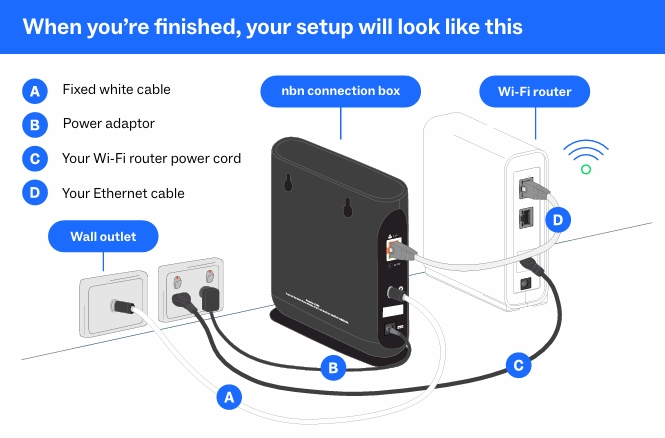
Source: Hybrid Fibre Coaxial (HFC) explained | nbn
What is the new HFC connection box?
The nbn® HFC box is a device that connects your home to the nbn® network using the existing coaxial cable (the same type used for pay TV). It acts as the middleman between your Wi-Fi router and the wider National broadband network.
The new model includes:
- A 2.5 Gigabit Ethernet port for high-speed Internet
- A secure fixed white cable that locks into place to reduce tampering
- Four front-panel lights to help you understand what’s happening with your connection
Some homes connected via HFC may be eligible for self-installation, meaning the equipment can be delivered to your home with step-by-step instructions. If your address qualifies, your Internet provider will notify you and provide setup guidance. Otherwise, an nbn®-approved technician will complete the installation.
Don’t remove the connection box when moving
The nbn® connection box is linked to your address. If you move, leave it behind - it won’t work at another location.
To remind you, the latest HFC box includes a locked white cable that connects the box to your wall outlet. If you're moving into a new place and the nbn® equipment is missing, contact your Internet provider so they can organise a replacement.
What you'll need for setup
You should receive the following items from nbn®:
- nbn® HFC connection box
- Power adapter
- Fixed white cable (already attached to the box)
You'll also need the following, supplied by you or your Internet provider:
- Wi-Fi router
- Ethernet cable
- Power cord for the router
For many nbn® connection types, the connection box acts as the modem, meaning you only need to connect it to a compatible router using an Ethernet cable to distribute the Internet connection around your premises.
Before you begin: Important checklist
Confirm with your provider that any essential services (like medical, security or fire alarms) will still work on the National broadband network
- Make sure you have a charged mobile phone available during setup
- Choose a cool, dry, well-ventilated space, away from direct sunlight
- Remember the nbn® equipment is owned by nbn® and must stay at the property
How to set up your HFC connection box
Sign up to an nbn® powered plan
Choose a provider and sign up to an Internet plan. They’ll confirm your order and let you know whether installation will be:
- Done by an nbn® approved technician, or
- A self-install (if your address qualifies)
Plug in the fixed white cable
- Connect the white coaxial cable from the connection box to the wall outlet. It comes pre-attached and locks into place.
- You’ll know it’s the right outlet if all four lights on the front of the box turn solid green in the next step.
Plug into power
- Connect the power adaptor to the connection box and plug it into a power outlet
- Turn the power outlet on
- Wait up to 20 minutes for the four lights to turn solid green
No solid green lights? Check that all cables are connected securely.
Connect your Wi-Fi router
Use the Ethernet cable to connect your Wi-Fi router to the port on the box labelled ‘Port’.
Once connected, your router will distribute the Internet signal across your home via Wi-Fi or Ethernet connections, allowing multiple devices to access the National broadband network simultaneously.
What do the lights mean on your HFC connection box?
There are four lights on the front panel:
| Light | Status | What it means | What to do |
| Power | Off | No power | Check the power cable and outlet |
| Flashing green | There's an issue | Contact your Internet provider | |
| Solid green | Everything is working | No action required | |
| Downstream | Flashing green | Firmware update in progress | Wait up to ten minutes |
| Solid green | Receiving data | No action needed | |
| Upstream | Flashing green | Firmware update in progress | Wait up to ten minutes |
| Solid green | Sending data | No action needed | |
| Online | Solid green | You're connected to the NBN network | No action needed |
During firmware updates, your Internet and some services (like medical alarms) may temporarily stop working. Always keep a charged mobile on hand.
Understanding the ports on the connection box
The ports are arranged top to bottom as follows:
- Ethernet port - Connects to your Wi-Fi router
- Reset - Use a pin to restart the box (only if instructed by your provider)
- Fixed white cable port - Connects to your wall outlet (locked into place)
- Power - Where you plug in the power adapter
How to remove the white cable (if needed)
The fixed white cable is designed to stay connected. But if you need to remove it temporarily (for example, during painting), you can unlock it by inserting a small object (like a paperclip) into the hole on the connector.
Just be careful not to damage the port or the cable.
What’s coming next?
Alongside the rollout of new connection boxes, nbn® Co has also introduced faster wholesale speed tiers for FTTP and HFC services. These upgrades significantly increase both download and upload speeds across several popular plans.
For example:
- Home Fast has increased from 100/20 Mbps to around 500/50 Mbps
- Home Superfast can reach around 750/50 Mbps
- Home Ultrafast can deliver close to 1000/100 Mbps speeds
- New Home Hyperfast plans can reach up to 2000 Mbps download speeds on supported FTTP and HFC connections
These improvements make it easier for households and businesses to handle high-bandwidth activities like ultra-high-definition streaming, cloud backups, video conferencing, and online gaming - even when many devices are connected at the same time.
nbn®’s long-term sustainability goals
In addition to improving Internet speeds, nbn® Co is also working to reduce the environmental impact of its network equipment. The company has committed to reaching net-zero greenhouse gas emissions across its operations by 2045.
Part of this goal includes reducing emissions from products such as customer connection devices. By 2030, nbn® aims to reduce emissions from these devices by approximately 60% per unit compared to 2021 levels.
These targets have been validated by the global Science Based Targets initiative, reinforcing nbn® Co’s commitment to sustainability across its network infrastructure and supply chain.
Not sure which connection box you need? We can help.
Whether you're getting connected for the first time, upgrading to faster speeds, or moving into a new home or office, the right equipment matters.
Different nbn® technologies use different types of equipment. Fibre to the Premises (FTTP), Hybrid Fibre Coaxial (HFC), Fibre to the Curb (FTTC), Fixed Wireless, and Sky Muster satellite connections all use dedicated nbn® connection boxes.
For Fixed Wireless connections, an outdoor antenna is installed on your roof or wall to receive the signal, which then connects to the internal nbn® connection box inside your premises.
Sky Muster satellite services work in a similar way, but instead use a satellite dish mounted outside your property. The dish connects to an internal connection box that links to your router using an Ethernet cable.
For Fibre to the Curb (FTTC) connections, the connection box is typically plugged into your phone wall socket using a telephone cable and also requires power. When the device starts up, you may hear a clicking sound - this is normal and indicates the box is drawing power from the Distribution Point Unit located in the telecommunications pit outside your home.
You can also check which nbn® technology is available at your address by visiting the nbn® Co coverage map online and entering your address to view the connection type listed under “Technology used”. Alternatively, you can speak with an expert who can check your address and explain your options.
Call Compare Broadband on 1300 764 000 to speak with a friendly expert about which nbn® FTTP box or HFC setup is best for your needs.
 Loading...